Deploying applications with Kamal
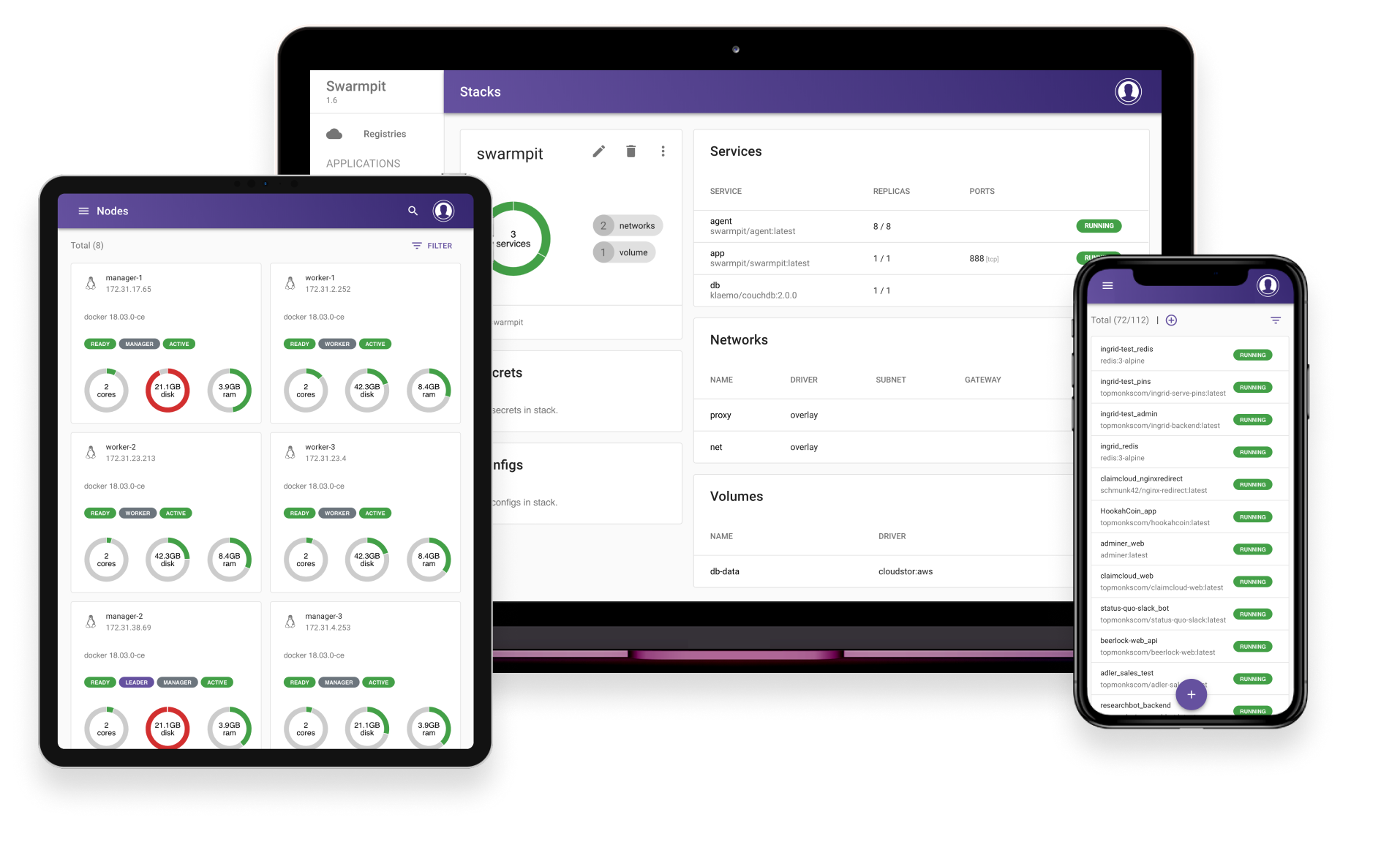
I've been running containers on Hetzner for two years now using a tool called swarmpit. It's a GUI for Docker Swarm and has worked great but it's overly complicated for what I need.
Kamal from 37signals has been in my sights for awhile and it seems like the perfect fit for what I need.
What intrigued me about Kamal
- installs itself on your server
- your deployment setup is defined in config files
- you can deploy applications from your own machine using CLI commands
- Kamal handles all the domain traffic routing and SSL certificate generation
Current Setup
My current setup utilizes DockerHub + Swarmpit + Nginx Proxy Manager. DockerHub gets triggered to build docker images when commits are made to my repositories on Github.
Once a build is finished swarmpit will automatically pull down the image and deploy it on my production server. Nginx Proxy Manager then handles all the traffic routing and SSL certifications.
This works great once setup but requires a lot of UI interaction.
My pain points with this setup is there have been a few times where swarmpit seems to blow up after updating ubuntu or making changes to docker via the CLI. This is almost certainly my own fault but truthfully this setup is overly complex for my needs and I need to simplify.
Migrating my first application to Kamal
I'm starting with an open source project of mine BudgetPro
It should be noted that Kamal requires your application to be dockerized.
First I navigated to my repo's folder and ran...
kamal initKamal will then install some files into your repo but the most import one is config/deploy.yml
If you already have a /config folder the file will be placed into it.
Looking at deploy.yml
This is one powerful file and once I started to figure it out I really fell in love with Kamal.
Here is a snippet we can look at
# Name of your application. Used to uniquely configure containers.
service: budgetpro

# Name of the container image.
image: moorlagt/budgetpro

# Deploy to these servers.
servers:
  web:
    - 5.5.5.5
Kamal does a great job of documenting config files. The interesting bit here is the IP address under web. This should be the IP of your production server or a list of server IP's you want Kamal to deploy to.
You'll need to be able to ssh into this server via ssh root@5.5.5.5 if you can do that locally without entering a password then Kamal will be able to login as well.
Let's look at another section
proxy:
  ssl: true
  host: budgetpro.tecdrip.com
  # kamal-proxy connects to your container over port 80, use `app_port` to specify a different port.
  app_port: 3000
Similar to my current setup. Kamal runs a reverse proxy in front of your containers. This proxy is responsible for tying domains to containers and setting up SSL with Lets Encrypt.
I set the host to the domain I want this application to run on, and I set app_port to whatever port my container is exposing.
TIP
Before pointing your domains to a new server. You may want to see if Kamal can successfully boot your container.
Set ssl: false and host: 0.0.0.0 to test things out before fully deploying to a domain.
If kamal deploy runs without error then you're good to point domains to your server.
KAMAL_REGISTRY_PASSWORD
Kamal has a secrets file in .kamal/secrets within this file is a key KAMAL_REGISTRY_PASSWORD=$KAMAL_REGISTRY_PASSWORD this needs to be accessible in your environment so Kamal can login to your image registry.
CAUTION
.kamal/secrets should not include hardcoded secret values. Values should be pulled from the environment or through 3rd party tools like 1Password. Kamal has great documentation around this in the secrets file.
I'm using DockerHub so I generated a personal access token and added it to my shell configuration.
Add this line to your shell's rc file (such as ~/.bashrc or ~/.zshrc) for it to be loaded when opening a new terminal.
KAMAL_REGISTRY_PASSWORD=YOUR_TOKEN_HEREThen run source ~/.zshrc to load the new environment variables.
Running Kamal for the first time
CAUTION
Kamal will only setup docker and other dependencies it needs on your server. It is your responsibility to make sure your server is secure. Things like firewalls, proper SSH security, fail2ban, and other security measures should be in place before exposing your server to the internet.
Now that everything is configured we run kamal setup
This will go install everything Kamal needs on my server and then attempt to deploy my application.
  INFO [4be7e07f] Running docker container ls --all --filter name=^budgetpro-web-85b523d85e328df203eb35fc34d5e4c49c34b67b$ --quiet | xargs docker stop on 5.161.69.34
  INFO [4be7e07f] Finished in 10.301 seconds with exit status 0 (successful).
Releasing the deploy lock...
  Finished all in 57.9 seconds
  ERROR (SSHKit::Command::Failed): Exception while executing on host 5.161.69.34: docker exit status: 1
docker stdout: Nothing written
docker stderr: Error: target failed to become healthy
Everything looks good but Kamal is giving us this error at the end Error: target failed to become healthy
The problem here is that we need a way for Kamal to know when our application is healthy. This will be useful for future deployments when a healthy container is running and we try to spin up a new container that never reaches a healthy state.
In this case my container is working fine we just need to tell Kamal how to check if my container is healthy.
proxy:
  ssl: true
  host: tecdrip.com
  # kamal-proxy connects to your container over port 80, use `app_port` to specify a different port.
  app_port: 3000
  healthcheck:
    interval: 5
    path: /health
    timeout: 10
With this healthcheck config I'm telling Kamal to hit the route /health and make sure its getting a 200 response. If it does then my container is healthy!
TIP
By default Kamal will check /up to see if a container is healthy or not.
After adding this change and committing it to the repo Kamal deploys my application successfully!
TIP
If you continue to get Error: target failed to become healthy
Try running your container locally and make sure it is...
- Building successfully
- Exposing the correct port
- Healthcheck route is working correctly.
Wrapping up
Now that everything is deployed and working correctly. We can continue to develop this application and run kamal deploy whenever we want to update our production server.
WARNING
You will need to commit any changes you want deployed or Kamal will not see them.
If you have more applications that need to be deployed to the same server repeat this process and Kamal will run them all seamlessly together.
Final Thoughts
I'm really impressed with Kamal. it's elegant, well documented and verbose with logging so you can always get a sense of whats happening or what problems its running into.
I'll be following up with another post about running Laravel applications with Kamal. That post will dive more into config files and sharing secrets with your application.
Thanks for reading!